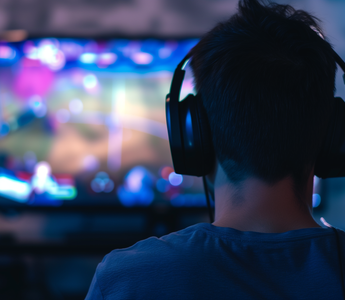
Live streaming on platforms such as Twitch turned the gamer’s room into part of the broadcast. Viewers see your face, your desk and the wall behind you, so lighting matters as much as the game. You do not need studio gear to get a clean look.
1. Light your face evenly
Put a soft light in front of you, slightly above eye level, rather than relying on the monitor glow. A monitor light bar lights the desk; for face light, a lamp placed in front and to the side works well. The Makeup Mirror Light (36 LEDs, no visible flicker) can be a compact front light for close framing.
2. Keep the desk visible
A Pura Pro (up to 1446 lux, 3000K–6500K) or Pura Lite lights the keyboard and controller area without shining onto the screen.
3. Give the background depth
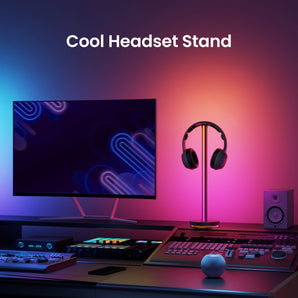
- Beam RGBIC light bars behind or beside the monitor add colour and include a headset stand.
- A Cube stack on a shelf makes a recognisable on-camera accent with clock mode and DIY effects.
- An Obsid RGBIC strip along a shelf or desk edge adds depth.
4. Match white balance
Set face and desk lights to the same white (for example around 4000K–5000K) so your camera does not mix warm and cool tones. Keep RGB behind you dimmer than your face light.
5. Test on camera
Record a short test, check for reflections in glasses and on the screen, and adjust angles before going live.
Browse gaming lighting and monitor light bars.
Frequently asked questions
What is the simplest way to light a stream?
Start with what you have: one soft light in front of your face, a desk light and a dim coloured backlight. Add more only if the camera image needs it.
Should my background lights be brighter than my face?
No. Keep background RGB dimmer so the camera exposes for your face.