Help with setup, controls and compatibility
Start with the exact product name and model. Some Yeelight products use an app or a gateway, while sensor lights and manually controlled lamps may use different controls. Follow the instructions for your own model rather than a generic bulb walkthrough.
Before pairing
Check the product guide for its app, connection method, reset procedure and network requirements. Keep the correct power equipment connected during setup. Follow the current app prompts; menu names and reset steps can differ between models.
Choose the correct compatibility path
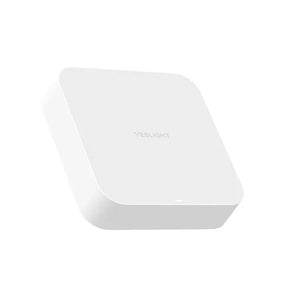
HomeKit, Matter and voice-assistant support are model-specific. D2 supports HomeKit, Alexa and Google Assistant. Cube Lite supports Matter, Alexa and Google Home. Pro Skylight 30 × 60 cm needs the separate YLWG01YL BLE Mesh gateway for app control. Do not apply these requirements to every lamp, strip or Skylight size.
If setup does not work
Check the model and connection requirements again before resetting the device. For a gateway-based light, also check the gateway setup. Prepare the model name and a description of the issue when contacting support; do not post passwords or pairing codes publicly.
Current help and model details
Frequently asked questions
Do all Yeelight products connect to the app in the same way?
No. Connection and reset steps depend on the model. Use its product guide and the current app prompts.
Do all Yeelight products support HomeKit or Matter?
No. Compatibility depends on the product. Check the exact model rather than relying on instructions for an older bulb or strip.
Does Skylight P21 need a gateway for app control?
Yes. Pro Skylight 30 × 60 cm needs the YLWG01YL BLE Mesh gateway. Check the separate product instructions for other sizes.